
iOS 26 CarPlay Widgets

I finally took the plunge and decided to upgrade my iPhone 15 Pro to iOS 26.1 this weekend. I figured it had been out long enough that I hopefully wouldn’t have any major issues.
The main reason I wanted to upgrade was to try out the CarPlay updates with my Polestar 2. Although I like the Android Automotive system overall, I almost always listen to Apple Music when I’m driven and for the best sound quality, that means I use CarPlay. I also prefer Apple Maps over the built-in Google Maps, mostly because I think the maps display is just cleaner with better navigation prompts. I’ll still go back to using Google Maps for longer road trips when I need more precise mapping with charger routing.
Anyway, this is the new widget display I have set up with CarPlay:
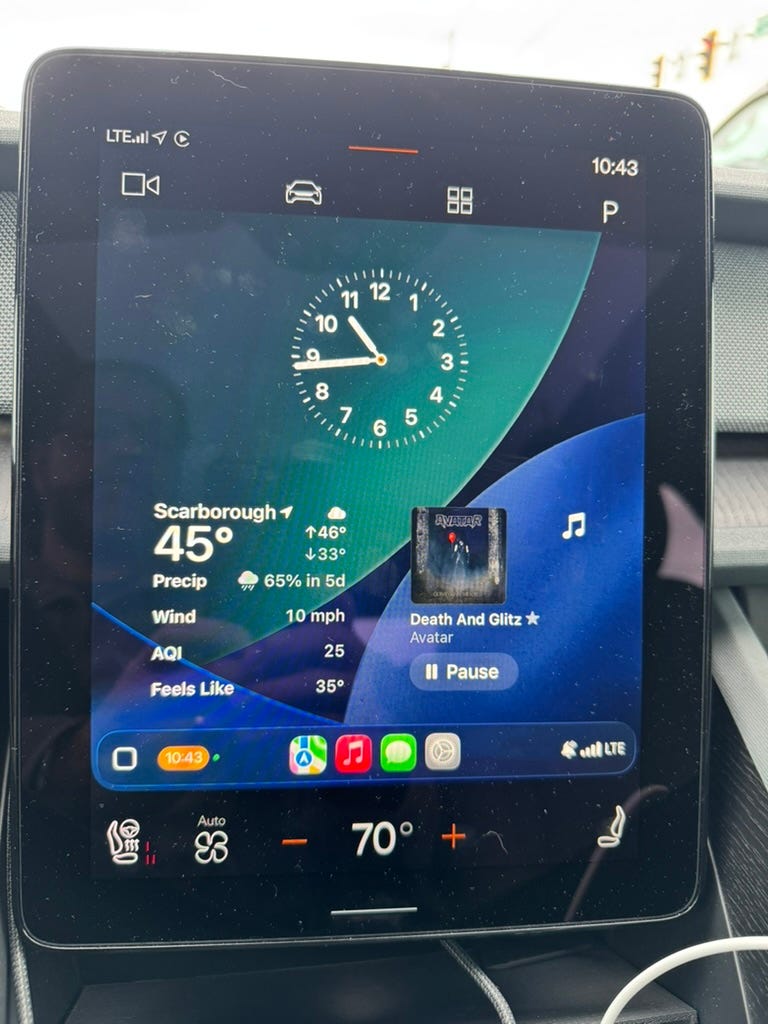
To get to it, you swipe right to get all the way to the left-most panel. You have to use your phone to configure the widgets. Go to Settings→General→Car Play and then choose your car. From there you can control what appears in the widgets.
As far as I can tell, the clock is always shown on the top. You can change how it looks by swiping on it in the display.
Below the clock are two stacks of app widgets that you can swipe through. My left stack is currently showing the Weather widget and I also have Calendar Date and Calendar Up Next available by swiping.
The right stack is showing the Music widget and I also have Marvis and Overcast in the stack.
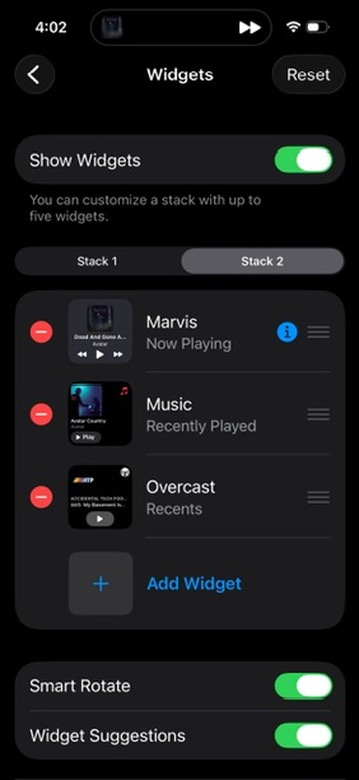
I think this CarPlay widget display is clean and I like having current driving conditions shown alongside my music. If I disconnect CarPlay with this screen shown, it will default to showing when I plug my phone back in.
The only glitch I’ve noticed so far is that sometimes the Music widget might show the last song I played while in the car instead of what is currently playing on the iPhone.
I’ll be using this setup for a while to see how I like it.